
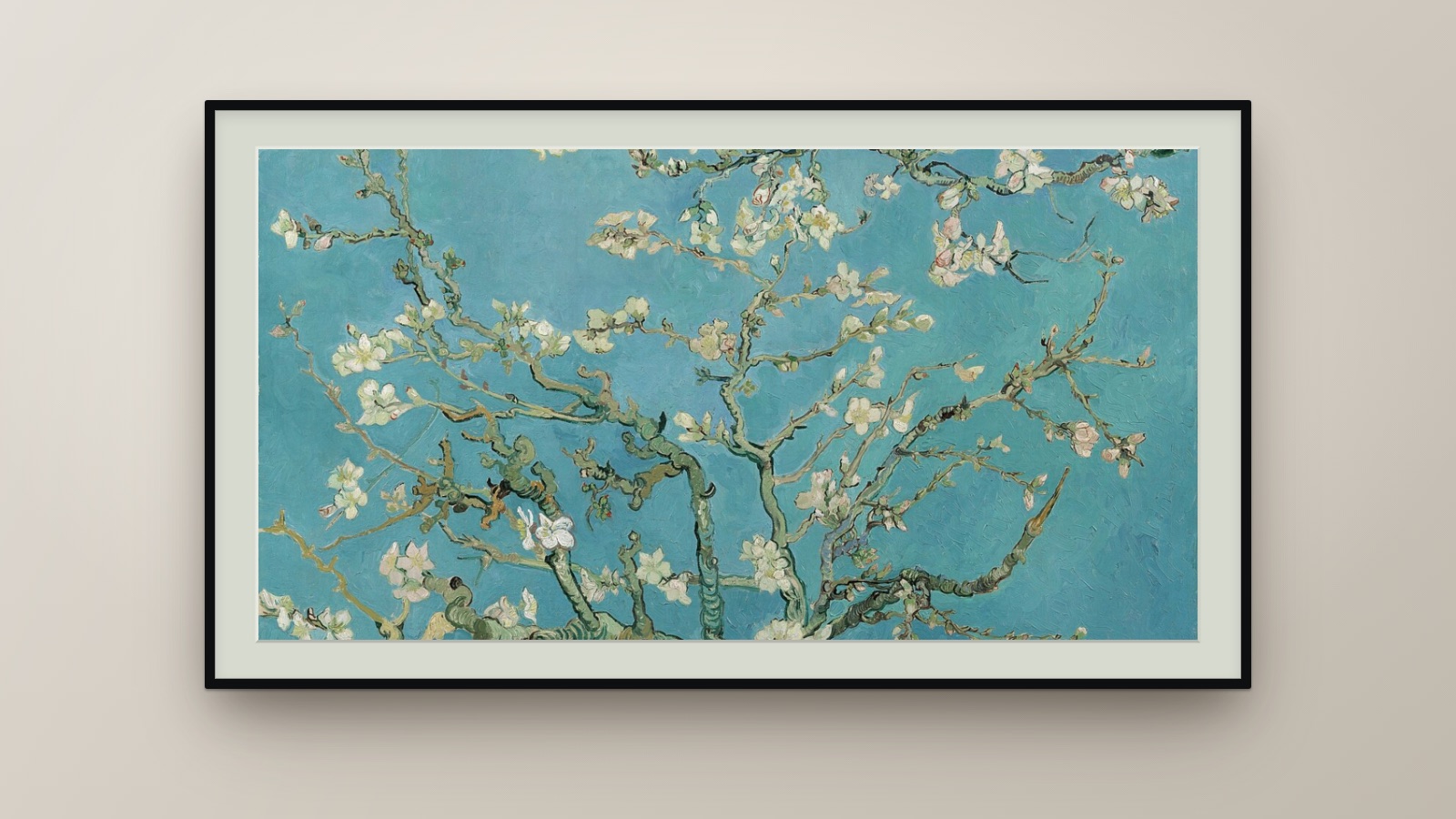
You just unboxed a Samsung Frame TV. Out of the box it can still look like a big black rectangle on your wall. These seven settings make it look like framed art instead. Each step is short and links to a deeper guide if you want more.
1. Learn the power button: TV mode vs. Art Mode
The Frame has two "on" states. TV mode is a normal TV. Art Mode turns the screen into a picture frame that shows art when you're not watching.
On the OneRemote, a single press of Power switches between TV mode and Art Mode. To turn the TV fully off, with no art, press and hold Power. Art Mode can't be permanently disabled, so a quick press will always take you to art, not to black.
Remotes and menus differ between model years, so if your remote doesn't behave this way, check the manual for your model.
2. Choose when your art stays on: Sleep After and Night Mode
Two settings decide when Art Mode turns itself off. Both are in Art Mode Options on the TV.
- Sleep After turns Art Mode off after no motion is detected near the TV. You can set it anywhere from 5 minutes to 4 hours. Pick a longer time if you want art on whenever someone's home, or a shorter one to save power.
- Night Mode uses the light sensor to turn the screen off when the room is dark or dimly lit. This is how it's designed to work, and many people want it, since nobody needs a glowing painting at 2 a.m.
If your art keeps disappearing in the evening, turn Night Mode off and turn Sleep After on. Then your art will stay on while people are in the room, even with the lights low.
You'll also find Motion Detector Sensitivity next to these settings if the TV wakes up too easily (or not easily enough).
3. Make it look less like a screen
The single biggest difference between "TV on the wall" and "painting on the wall" is brightness. A screen that's brighter than the room around it gives the game away.
In Art Mode settings, you'll find Brightness and Color Tone. The Frame also adjusts brightness and color to your room's light while in Art Mode, so start there and nudge it from that point.
A few tips:
- Adjust in the light you'll actually see it in. Set it in the evening with your normal lamps on, not at noon.
- Lower it until it stops glowing. A real print doesn't emit light. If the art looks backlit, turn brightness down.
- Try a warmer color tone if the whites look blue next to your walls.
There's no single right setting. It depends on your room, your windows and your bulbs. Menu names and options vary by model.
4. Start with free art, not just the Art Store
Samsung's Art Store is a paid subscription. It's good, but you don't need it to fill your Frame. Museums like the Smithsonian, the Art Institute of Chicago and the National Gallery of Art have released thousands of public domain paintings that are free to use.
You can browse a free library of Frame-ready art at art.framecrop.app, or start with our list of 1,000 popular free artworks that other Frame owners have chosen.
To get that art onto the TV, follow our step-by-step guide: How to Add Free Art to Your Samsung Frame TV.
5. Get the crop and mat right
The Frame's screen is 16:9 (3840 × 2160 on 4K models). Most paintings aren't that shape. When you upload an image that doesn't fit, the TV shrinks it and adds a mat around it.
You have two good options:
- Edge to edge. Crop the art to 16:9 so it fills the screen. Keep important details, like faces and signatures, away from the edges so the crop doesn't cut them off.
- Matted. Keep the whole artwork and let a mat frame it, like a gallery print. This suits portraits and small works best.
Neither is wrong. Try both with the same piece and see which you prefer on your wall.
Frame Crop crops art to your Frame's exact size, and you choose which part of the artwork to keep. If you'd rather have a mat, you can pick its style, color and border size. Read more in why your art has a mat around it.
6. Add a personal photo
A family photo can look great on a Frame, but not every photo works from across the room. Look for:
- A simple composition. One subject and a clean background read better than a crowded group shot.
- Good resolution. Anything from a recent phone is fine. Old scans may look soft at 65 inches.
- Muted colors. Landscapes, black and white, and soft light tend to sit next to real art better than bright, high-contrast snapshots.
The easiest way to add one is Frame Crop. It crops your own photos to fit and sends them to the TV over your home Wi-Fi, with no cables.
You can also load photos from a USB drive. Where the drive plugs in and how the menus look varies by model.
7. Optional extras: portrait mode and bezels
Portrait mode. Mounting the Frame vertically gives you a portrait-shaped canvas. Rotating the TV needs a compatible mount, and support varies by model and screen size, so make sure a mount supports your exact model before you buy it. Frame Crop crops art for portrait orientation too.
Bezels. The Frame ships with a plain black border. Swapping in a wood, white or metal bezel is optional, but it makes the TV look more like a real frame. Our bezel guide helps you find one that fits your size and decor.
Free art, cropped to fit your Frame
That's your first evening. Your Frame should now look like art, stay on when you want it to, and have something worth looking at.
If you want a faster way to fill it, Frame Crop gives you millions of free artworks, crops each one to fit your Frame, and sends it straight to Art Mode. It's a one-time $7.99 on iPhone and Android, with no subscription.